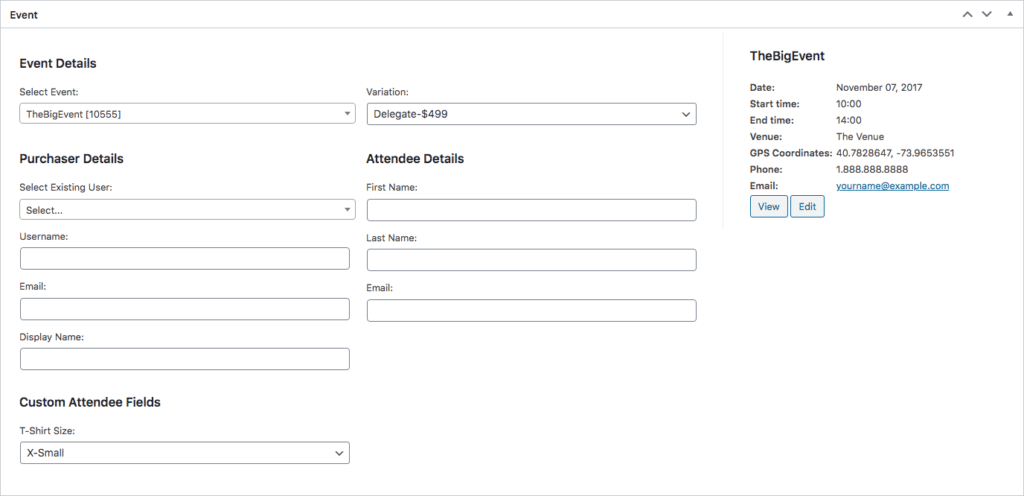
Manually Create an Event Ticket
Create tickets from the WordPress dashboard
- Go to FooEvents > Tickets in the main menu
- Click on the “Add New” button, which you will find under “Tickets”
- Select the event name for the specified event
- Fill out the rest of the ticket form and click the “Publish” button to create the new ticket. A corresponding order in WooCommerce will automatically be generated. By default, WooCommerce will send the customer a new order email. However, you can disable this for manually created tickets by going to FooEvents > Settings > General and enabling the Disable completed order email notification option.
 Please Note: Tickets are NOT automatically sent out after creating the ticket. If you would like to email the ticket to the attendee, click on the “Resend” button on the ticket information screen.
Related Articles
Manually Creating Subscription via Admin
Add the user to the site first by going to Users > Add New. Fill out the users' details: User Role is Subscriber, for the Send User Notification Checkbox, CRU recommends unchecking this so the customer DOES NOT get sent an automated email - This is a ...
FooEvents for WooCommerce
Sell tickets with no commission or ticket fees and manage free registration for practically any type of physical or virtual event such as a concert, class, conference, tour, webinar, fundraiser or sports fixture. FooEvents doesn't require any tech ...
Coupons
Adding a coupon To add a coupon: Go to: WooCommerce > Coupons. A fresh installation of WooCommerce will show you an initial screen to create a coupon or to learn more. Existing stores start on the Coupons screen. Create a new coupon by selecting Add ...
Groups/Dynamic Pricing
The way we assign groups to users for discounts be it members or special privileges groups is by using a Groups plugin. This, in conjunction with Dynamic pricing (see below), not only allows you to assign membership pricing for ad hoc purchases but ...
PDF Vouchers
Creating a voucher template Follow the steps below to create a voucher template: Go to WooCommerce > Vouchers > Voucher Templates. Click Add Voucher Template. On the General tab, determine the template name, voucher type, whether the voucher can ...